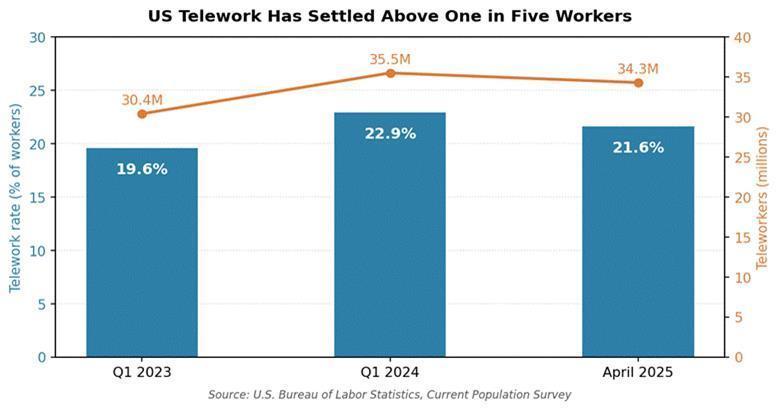
A frozen laptop. A printer got stuck offline. An update that locked out half the staff. Every help desk fields these calls, and the drive out to fix them is wasted time. The Bureau of Labor Statistics counted roughly 34.3 million Americans working from home for pay in April 2025, and that scattered workforce still needs hands-on help fast. The fix is software that lets a technician see and control almost any machine from anywhere. Here is how it works, where it pays off, and how to switch it on this week.
Key Takeaways
• Technicians get secure, real-time access to any user device, wherever it sits.
• Three modes cover most jobs: attended, unattended, and view-only screen sharing.
• Encryption, multi-factor login, and session logging are must-have safeguards.
• A cloud platform can be piloted inside a single business day.
• The right pick depends on user count, device mix, and help desk fit.
What Remote Support Technology Actually Is
Remote support technology is software that lets an IT technician connect to someone else’s computer or phone over the internet and fix the problem as if seated right there. The technician watches the screen live and, in most cases, drives the mouse and keyboard to sort the issue out.
Want the mechanics under the hood? This guide to what is remote support technology walks through attended sessions, unattended access, and screen viewing in plain words. In short, a small agent or a session code opens a protected channel, and the technician handles the rest.
Before any of this existed, support meant phone walkthroughs and emailed screenshots. People described what they saw, technicians guessed, and tickets crawled. Live viewing swaps guesswork for direct sight, which is the whole point.
|
Quick definition In one line: it is the bundle of software, agents, and encrypted connections IT teams use to view, control, and repair devices without ever visiting them in person. |
The Three Modes You Will Run Into
Platforms break down into three working modes, each built for a different moment. Most mature tools include all three, and your usage shifts with the person, the device, and the urgency.
|
Mode |
User present |
Best for |
Setup needed |
|
Attended |
Yes |
On-demand fixes, BYOD, contractors |
Just a one-time session code |
|
Unattended |
No |
Patching, after-hours maintenance |
Lightweight agent on each device |
|
Screen view |
Yes |
iOS guidance, training, locked-down sites |
Minimal, view-only |
Attended Sessions
Also called on-demand support, an attended session starts when someone reports trouble and shares a one-time code. Nothing gets installed on their end, which makes it perfect for personal laptops, contractors, and outside customers who need a quick hand.
Unattended Access
This mode runs a small agent on every managed machine. With it in place, a technician can hop on at any hour without bugging the user, which suits patch cycles, software rollouts, server checks, and quiet overnight maintenance.
Screen Viewing Only
View-only sessions show the user’s display without taking the controls. Apple blocks direct control of iPhones and iPads, so guiding iOS users this way is standard. It also fits training and locked-down settings where hands-off is the rule.
Why It Matters Right Now
Hybrid setups turned remote help desk tools from a nice extra into a basic requirement. BLS figures show 22.9 percent of US workers teleworked in the first quarter of 2024, climbing from 19.6 percent the year before, and the share has held steady ever since. People split across kitchens, branches, and shared offices simply cannot wait around for a desk-side visit.
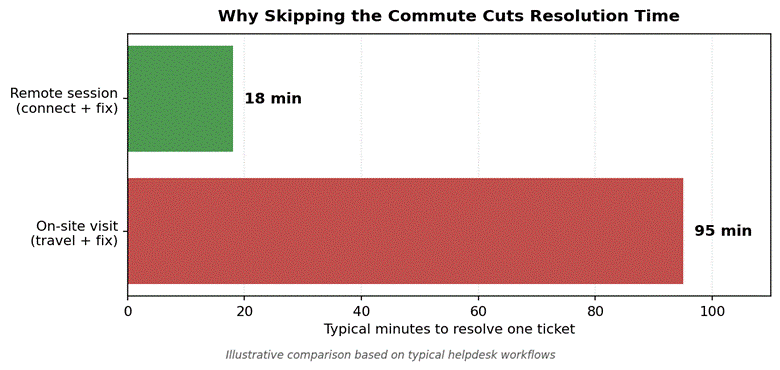
Cutting travel out of the loop is where most of the time savings come from.
So the payoff lands in three clear places:
• Quicker resolutions because nobody burns an hour driving to the problem.
• Leaner costs since one specialist can cover dozens of locations at once.
• Stronger uptime, which guards revenue directly.
Over 90 percent of mid-size and large enterprises now lose more than $300,000 for a single hour of downtime.
Source: ITIC 2024 Hourly Cost of Downtime Survey
For more on how spread-out teams reshape tech budgets, this NIST guide to cloud-based remote access solutions pairs well with this piece.
Core Features Worth Demanding
Vendor checklists swing wildly, but a credible platform should deliver the following without charging extra for the essentials:
|
Capability |
Why it matters |
|
Cross-platform reach |
Covers Windows, macOS, Linux, Android, iOS, and Chromebook so no device is a dead end |
|
Unattended access |
Lets you patch and maintain machines overnight without disturbing anyone |
|
TLS + 256-bit AES |
Baseline encryption for any data travelling across the public internet |
|
Multi-factor login |
Stops stolen passwords from turning into hijacked sessions |
|
Session recording |
Builds an audit trail for compliance reviews and technician training |
|
File transfer |
Moves patches, logs, and configs across in a single click |
Beyond that core, look for low-latency 4K screen sharing, multi-monitor handling, remote print, granular role controls, and in-session chat so the user stays in the loop without a parallel phone call.
|
Pro tip Test the view-only mode against an iPhone or iPad before you sign anything. Apple’s rules are strict, and not every tool handles screen viewing on iOS cleanly. |
Watch it in action: this short clip shows an attended session opening with a session code, then a technician taking control to fix the issue.
Where Teams Put It to Work
Help desk tools earn their cost across nearly every sector, though a handful of patterns show up again and again:
• Internal IT desks clear user tickets without sending anyone out the door.
• Managed service providers watch dozens of client networks from one console.
• Schools set up student laptops and troubleshoot from a central office.
• Clinics keep shared workstations running while guarding patient records.
• Retail and field crews patch registers and kiosks without a store trip.
• Software firms walk new customers through setup during onboarding.
Real users tend to single out the productivity lift. One verified reviewer on G2 put it plainly after rolling a platform out across a growing team, and the comment lines up with what most help desks report once travel disappears from their week. For broader habits that complement a new tool, this Harvard Business School guide on strategies to enhance team efficiency is a useful companion read.
My favorite aspect is the unlimited technician access paired with device-based licensing, which lets entire IT teams collaborate without extra per-user fees.
Verified IT admin review, G2
Security Habits That Keep You Safe
Any tool that opens a door into a corporate device lands squarely on the security team’s radar. The reassuring part is that vendors have matured, and the basics protect you well once switched on.
• Require multi-factor login on every technician account, with zero exceptions.
• Apply least-privilege roles so junior staff never reach systems beyond their remit.
• Record and review sessions; most platforms log metadata and full video.
• Ask for user consent on attended sessions and show a clear active-session indicator.
• Place the tool behind a zero trust layer rather than a flat company VPN.
Approaches such as zero trust network access check each user and device on every single connection, which fits how support sessions tend to be short and high-trust. Pair that with tidy endpoint hygiene and the help desk gains speed without losing its grip.
|
Security warning A tool missing session recording, multi-factor login, or granular permissions is a liability dressed as a convenience. Treat all three as the bare minimum, not premium extras. |
How to Start Using It This Week
Most cloud platforms hand you a working trial in under an hour. A sane rollout looks like this:
1. Scope a small pilot. Pick one help desk team and a user group of roughly 20 to 50 people.
2. Match the vendor to your stack. Line up licensing, device count, and integrations with what you already run.
3. Push the agent. Deploy through your endpoint manager or share a signed install link.
4. Lock down the controls. Turn on multi-factor login, set roles, and enable logging before the first ticket.
5. Hand technicians a runbook. Spell out how to request access, when to escalate, and where logs live.
6. Measure, then widen. Track resolution time, ticket volume, and satisfaction, and expand once the numbers improve.
Frequently Asked Questions
How is remote support different from remote access?
Remote access lets you reach a device you own from elsewhere, like logging into your office desktop from home. Remote support is a narrower case where a technician connects to someone else’s device specifically to diagnose and repair a fault.
Is it safe for sensitive data?
Yes. Reputable platforms encrypt sessions with TLS and AES-256, then add multi-factor login, device authentication, and full logging. Combine those with internal access policies and least-privilege roles to keep regulated workloads protected throughout every connection.
What does the software cost?
Pricing varies by model, though entry-level plans often begin around $22 per month per technician seat. Many vendors charge by managed device count instead of per user, which keeps budgets steady as your fleet grows alongside the team.
Does it work on phones and tablets?
It does. Android devices generally allow full control, while iOS limits technicians to screen viewing because of Apple’s platform rules. Either way, mobile coverage ships as standard now and matters for any bring-your-own-device program.
How fast can a small team deploy?
A cloud tool can be live within a few hours. Sign up for a trial, push the agent to a handful of test machines, configure login and roles, then run a couple of practice sessions before you open it to real users.
The Takeaway
Remote support is no longer a forward-looking upgrade. It has become the floor for any IT team backing more than a few people across more than one site. The right platform trims tickets, shields data, and gives technicians the visibility to squash problems before frustration sets in. Start with a tight pilot, choose a tool that suits your security posture, and you will soon wonder how the desk ever managed without it.